Ground map
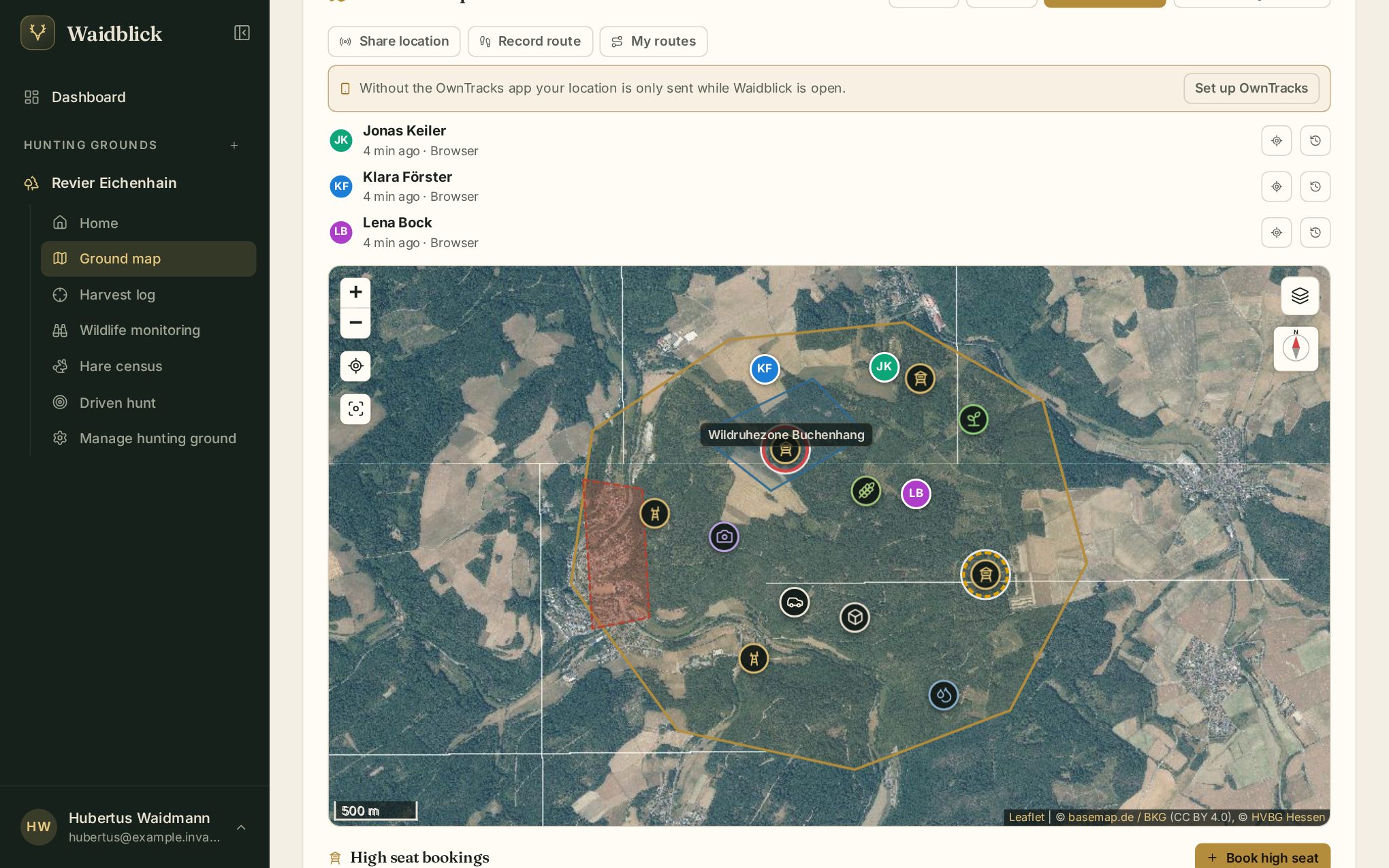
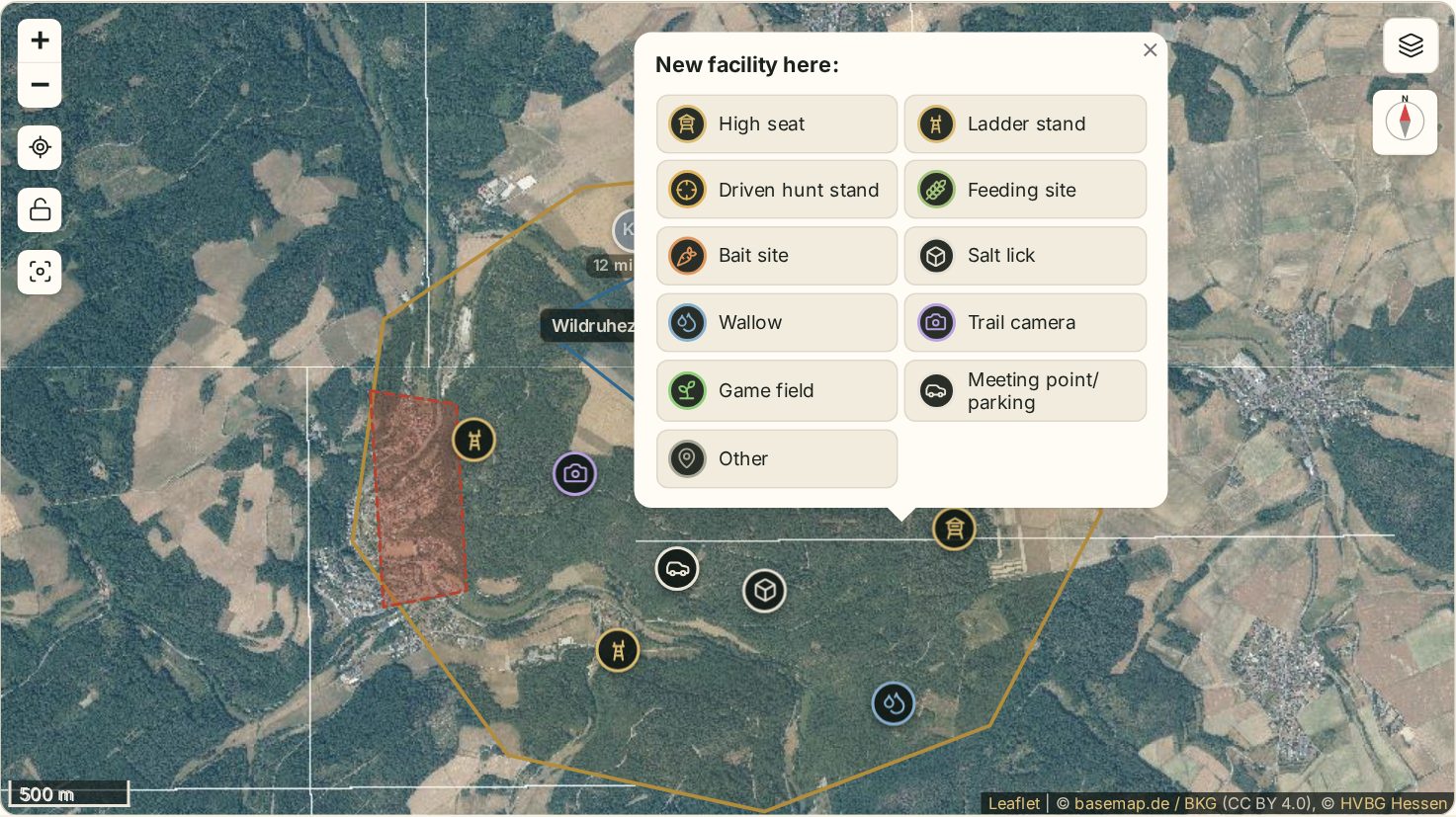
The ground map shows the hunting ground with its boundary, zones and all facilities. This is also where you share your location, record routes and book high seats.
What the map shows
- Ground boundary as a golden line.
- Excluded areas (hatched red) – they do not count towards the huntable area. Their name appears when you tap or hover over them.
- Landscape areas (blue), such as fields, woods or quiet zones, with their names.
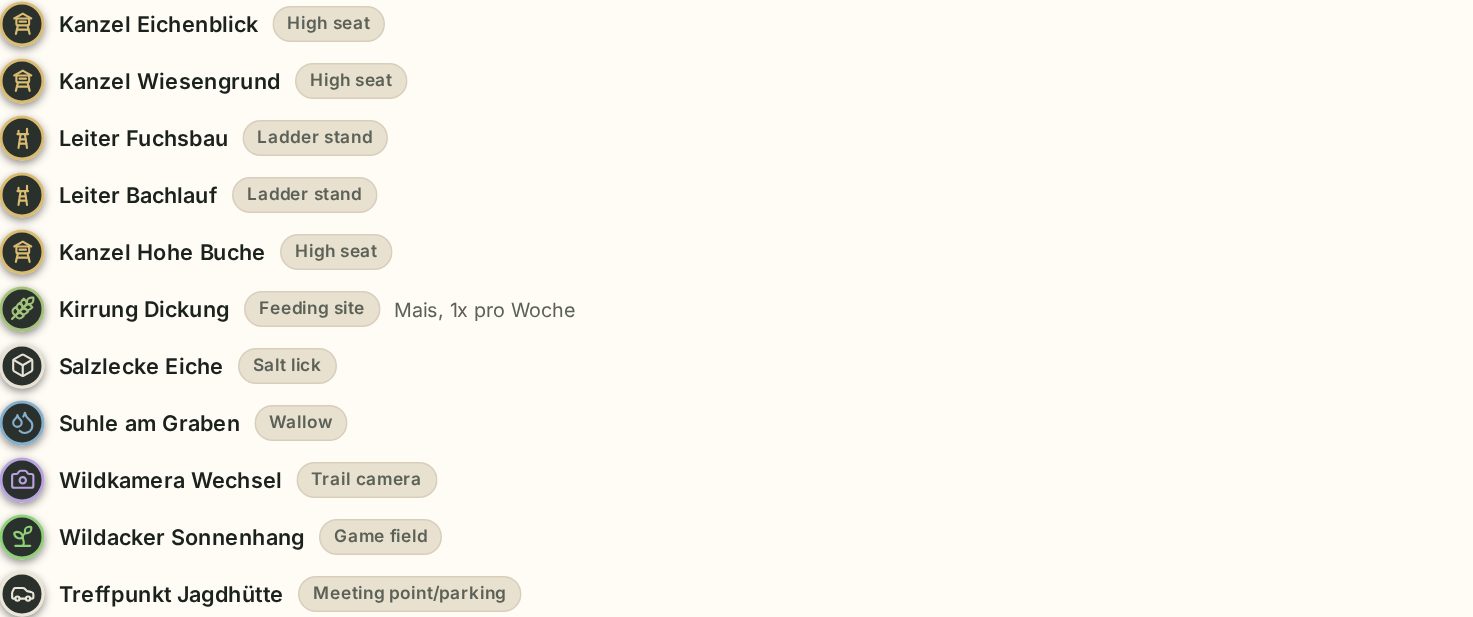
- Ground facilities as symbols: high seat, ladder stand, driven hunt stand, feeding site, bait site, salt lick, wallow, trail camera, game field, meeting point/parking and other. A click shows name, note and – for high seats – the booking status.
- Hunters sharing their location as coloured circles with their initials.
- Rescue points of the forestry rescue chain (KWF) in the ground and up to 2 km around the boundary.
Below the map you find the areas (total, excluded, huntable), the list of zones and ground facilities, and nearby rescue points – marked “in the ground” where applicable.
Map layers
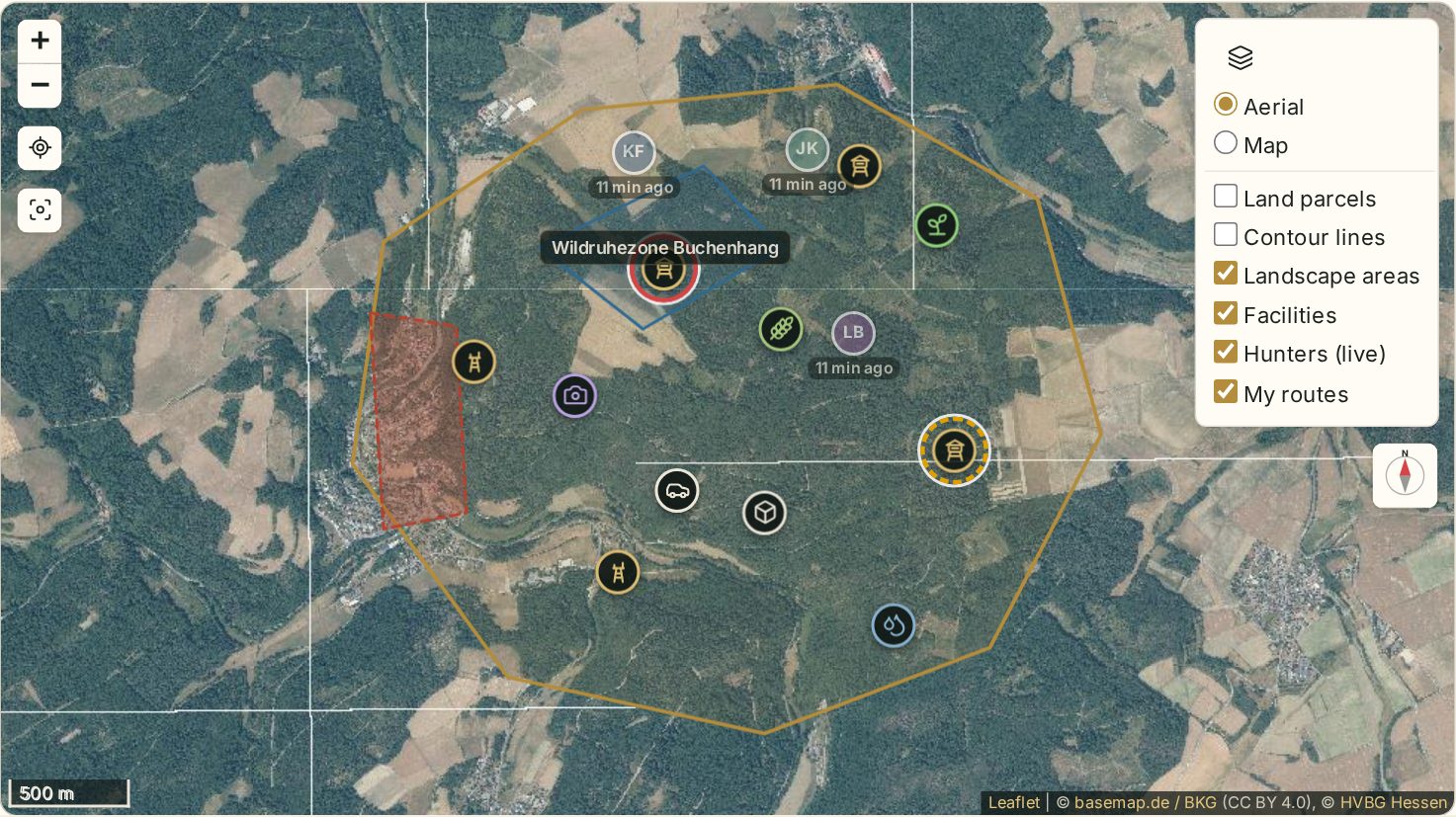
The layer symbol at the top right selects the base map and switches layers on or off:
| Layer | Description |
|---|---|
| Aerial | Orthophotos (in Hesse from HVBG, elsewhere basemap.de) |
| Map | Topographic map from basemap.de |
| Land parcels | Parcel boundaries and numbers (Hesse), visible when zoomed in |
| Contour lines | Contour lines for all of Germany (basemap.de) |
| Landscape areas, Facilities | Zones and ground facilities |
| Rescue points | KWF rescue points |
| Hunters (live), My routes | Shared locations and your recorded routes |
Waidblick remembers your choice per device.
Map buttons
- + / − zoom.
- My location centres the map on your position.
- Show whole ground zooms to the boundary.
- Compass – tap to align the map with the direction you are facing (on devices with a compass).
- Lock map prevents panning and zooming, so scrolling the page does not move the map by accident.
Editing facilities
All members can add and change ground facilities. Tap Edit facilities:
- Tap the map where the facility is. New facility here opens with all types.
- Choose the type – the facility appears immediately and you can give it a name.
- Tap an existing facility to change its name, type or note, or delete it. Facilities can be dragged on the map.
- Done ends edit mode.
Every change is saved immediately. A status shows Saving …, Saved or No connection – without a signal Waidblick retries automatically.
Export as GPX or KML
GPX and KML download boundary, zones and facilities as a file – for a GPS device, Google Earth or another map app.